


Showing posts with label Tricks. Show all posts
Showing posts with label Tricks. Show all posts
Publicizing Your Website - "Tips" and "Tricks"

Some folks mistakenly think that as soon as they publish their Web site, the world will beat a path to their cyber- door. Unfortunately, getting web surfers to visit your site isn't quite that easy! registering your Website with a bunch of search engines makes it easier for people actively hunting for your site to find you on the Web.But to attract visitors on your site who already do not know who you are and what your site is all about,you must do more than just submit your site to search engines : you must publicize your site.
Understanding Search Services
Registering your site with search services such as Yahoo! and Google,is the first step for any successful site publicity campaign.To make the most of your search service listing,however you need to make sure that you code your HTML properly - before you submit your site.

Over the last few years, the number of websites has mushroomed to titanic proportions, and search services have reacted by merging with one another and by tweaking the way they examine site submissions.The result? These days,submitting to site services has become both art and science - especially for those hoping to win a coveted high ranking.
Despite all these changes, the following are still three most important things you can do to help search services classify your site properly,in order of importance :
1. Specify a descriptive page title :
Search services first examine the title of your Web page.(By title i mean the text you place between beginning and ending HTML <TITLE> tags, and which appears in the browser window's title bar when your page is loaded.)
2. Include appropriate page content :
After the title, search services look at the text that appears on your webpage.
3. Add meaningful HTML meta tags :
Finally search services scan special HTML tags,called meta tags, to decide how to classify your site.
Although submitting your site to many search services is still free,more and more search services are beginning to charge a fee for listing your Website.

Going Beyond Search Services
Getting your site listed with search services is great first step in any site publicity plan. If you really want to pull in visitors though, you will have to do more.Two of the best ways to publicize your site are :
1. Getting other people to link to your site from theirs.
- Research the web and come up with sites that are similar in content to yours.
- Send a note to each site requesting a link.
2. Advertising your site.
- Add your domain name to your e-mail signature.
- Participate in newsgroups,lists and chats.

Using Site Statistics

If you are serious about reaching readers with a Website, you need to know what are site statistics and how to use them.
Site statistic software sits on the same web server your Website files sit on.
Every time a reader loads or interacts with your Webpage,statistic software logs the interaction.
The kinds of statistics typically logged include :
- How many hits each page of your site gets, and when.
- Which site referred the visitor to your site.
- How many times surfers tried to view your site, but couldn't (and why).
- What country your site visitors are from.
- Which make and model of browser surfers are using to view your site.

Accessing Site Statistics :
Site statistic software must be installed on a Web-server; it doesn't work if its installed on your computer. The company that hosts your Web site controls which statistics package you have access to and how you access it.
Top 10 Ways to Speed Up Your Slow Technology

As fast as your technology may have been on day one, it's probably not quite so speedy now. That doesn't mean you can't restore it to its former glory. Whether it's your desktop, laptop, or mobile device, here are 10 great ways to speed up your slow technology.
10. Clean Up Your Drive
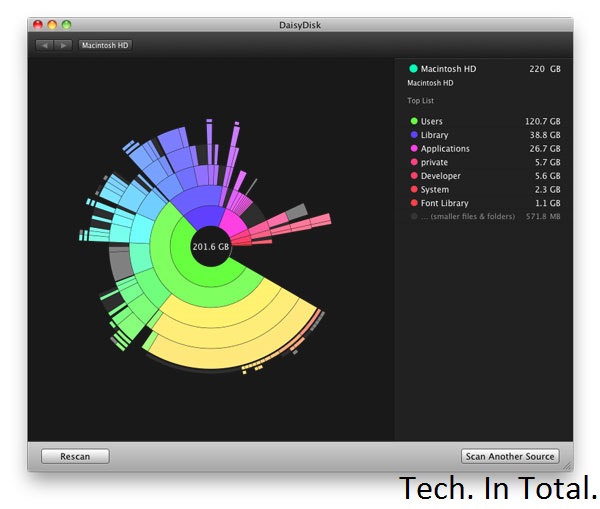
Whether your drive is in a computer or a mobile device, if it gets filled up you're probably going to lose some speed in the process. Although you may have a number of important files on that drive, there's still a bunch of stuff you can get rid of. On a desktop computer, the easiest way to find what's taking up a bunch of space is to use a disk space analyzer. Then you can use that information to figure out what to delete.
Most Android users can migrate data to a microSD card and call it a day, but if you're rooted you can use an app like SD Maid to clean things up automatically. If you're running iOS, you don't get an automatic method for cleanup but you can view what's taking up all that space. Head on over to the Settings app, tap General, and then tap Usage. You'll get a rundown of which apps are using how much space so you can delete them, or at least delete some of the data they're saving on your device.
9. Install a Custom ROM on Your Android

When Android 4.1 Jellybean is released (and actually on real devices), the OS' sluggishness might be a thing of the past. For those of us still running 4.0 or earlier and are bothered by speed issues, choosing a speed-optimized ROM can help remedy the issue. Speed is probably not the first priority of the ROM that comes with your device, so do a little research to see what's available and if you can flash something better.
8. Speed Up Dropbox's File Syncing Speeds

You can only upload as fast as your connection allows, but Dropbox—by default—limits your upload speeds no matter what. Instead of maximizing your connection, it automatically choices whatever speed it believes is optimal. You don't have to let Dropbox choose for you. You can limit it to any speed yourself, or remove that limit entirely:
On Windows, Click Dropbox in the system tray, then Preferences > Bandwidth; on Mac, click Dropbox in the menu bar, then Preferences > Network > Bandwidth > Change Settings. Once there, change your Upload rate to "Don't limit", or if you're familiar with your network's upload bandwidth and want to exercise a little more control, pick an upload limit that you're comfortable with in the Limit to field.
That's all there is to it.
7. Uninstall Unnecessary Apps

There's nothing wrong with a few apps on your computer, but when you're running a ton of them it can slow things down. If you need them you need them, but there are probably a few you don't. At the very least the apps are using your disk space, if not taking up additional resources, so it's good to audit your collection and uninstall what you don't need. Unsurprisingly, uninstallers can make this process a little easier for you. They give you a list of your apps and let you remove them with a few clicks. You still have to audit the list yourself, but it's a process that's much more simple than manual removal.
On mobile devices this isn't so much of an issue as both iOS and Android make it pretty simple to get rid of an app you don't want. Sometimes you end up with a lot of apps and aren't sure what you can get rid of.
6. Perform System Maintenance and Optimization

Modern operating systems perform maintenance tasks on their own, but these automated routines aren't perfect. It's a good idea to perform these tasks yourself on a monthly or bi-monthly basis. On Windows, CCleaner will get the job done. It works on OS X as well, but we prefer Onyx.
5. Speed Up Browsing Times by Optimizing Your DNS Settings

The amount of time you spend waiting for a site to load can be a bit faster if you're using the best DNS servers. The problem is, which servers you ought to be using will depend on your location. Namebench is a free utility for Windows, OS X, and Linux that'll run tests to figure that out for you so you can optimize your DNS settings. The test can take a little while to complete, so run it, take a break, and come back to better DNS server suggestions.
4. Install a Lightweight Operating System

Sometimes your computer is just old and any speed gains you can tweak out of it are not going to be worth your time. Instead, it's better to just say goodbye to the machine as you know it and give it a lightweight operating system it can run with ease. Which OS should you pick? some good ones for netbooks (which may do just as well for old machines), but generally that means some flavor of Linux. While that'll work for a lot of Tech. In Total. readers, it won't for everyone. If you'd rather stick with Windows, trim it down to the bare essentials. It may not be as fast as some of those tiny Linux distributions, but it'll be a lot faster than a feature-rich copy of Windows.
3. Boost Your Boot Time

You're probably not rebooting your computer with too much regularity, but that can make it all the more frustrating when you have to wait to see your desktop again. While booting up is always going to take a little while, you can speed it up. Windows users have a great tool called Soluto that helps you fix a number of issues that cause slow performance, including problems that affect boot times.
OS X users don't have such a nice solution, but OS X is pretty quick when it comes to the actual boot screen. More slowness occurs after you see the desktop and all the little things you have installed start to open. If you want to remedy that situation, just head into the System Preferences app, the Users and Groups preference pane, and click on your user. In the Login Items tab you'll have a list of all the stuff that you've set to run when you log in. If there's anything in there that you don't really want, just remove it from the list and your startup time will improve. Users of OS X Lion (or later) may also benefit from disabling the Resume feature, which restores your computer to its previous state as soon as you boot up. You can do this in the General preference pane in System Preferences by unchecking the box next to "Restore windows when quitting and re-opening apps."
2. Overclock Your Processor

If you literally want to speed up your computer, that's what overclocking can do for you. Some processor overclocking provides greater speed gains than others, so you'll want to do a little research before you jump right in. The process takes quite a bit of time, commitment, and care, so you don't want to bother if you're in for negligible speed gains. You can even overclock your video card, too.
1. Get an SSD

By now, it shouldn't come as a surprise that we think the SSD is the best upgrade you can get for your computer and now is a great time to buy one. When home for the holiday, I stopped in at Microcenter and found 120GB OCZ Vertex and Agility SSDs for under $100. I've seen online deals for even less from time to time. SSDs have never been more affordable and they can make a sluggish computer feel brand new. If you've been sitting on the fence about making the upgrade, now's a great time to make the change. Just know that you'll never go back.
The Stupid Things You Do Online (and How to Fix Them)

Articles
The internet can bring you a lot of joy, but it can also turn into a world of pain the moment you make one stupid mistake. Perhaps you've been feeding the trolls, using "password" as your password, or selling your soul for access to a "free" web app. Your dumb mistakes can come back to bite you in the ass if you aren't careful. Here's how you can save yourself from yourself online.
Title image remixed from an original by Konstantin Maslak (Shutterstock).
Stupid Thing #1: You Undervalue Your Personal Data

Fortunately, you can have your cake and eat it too. If you don't like targeted ads based on your search history, you can just utilize your browser's Do Not Track options. Facebook now offers lots of ways to set the level of privacy you want to maintain, which is great, but with all the options it can be tough to learn and get just the way you want. Our always up-to-date guide to managing your Facebook privacy can get you up to speed. One of the first things you should do with Facebook is prevent apps from using your personal data as much as possible. Signing up for an app can provide the developers with much more information than you may realize as the apps will take information they don't necessarily need. To find out what each app is doing and limit its reach, just click the downward-facing triangle in the upper-right hand corner of your Facebook page and choose "Account Settings." From there click the Apps tab and click the "Edit" link next to any app. You'll see a list of what it is allowed to do plus the information it can access. Some stuff will be required for the app to function, but you'll almost always find something that isn't. Click the "Remove" link to revoke the app's permission to access that information.
Stupid Thing #2: You Submit Sensitive Information Over an Insecure Connection
 When you submit sensitive information—like, say, your credit card number or login credentials—over an insecure connection, it's not necessarily your fault. Web sites worth their salt need to use HTTPS, rather than HTTP, in order to transfer data securely between your computer and their servers. That said, you have to be diligent and look for https:// in the URL bar in your browser (see the image to the right for an example). If you don't see this, chances are you're just using standard HTTP.
This isn't a big deal if you're just reading or watching something, but if you don't see https:// you should avoid sending sensitive information like your credit card number or address. Also, the insecurity of HTTP isn't as big of a deal when you're on your password-protected home network, but when you're on a public Wi-Fi connection, anyone can snoop on what you're doing.
Stupid Thing #3: You Feed the Trolls
 When you feed the trolls—that is, the moment when you engage a malicious idiot in their hateful, annoying, and pointless discourse—you do everyone a disservice. You not only involve yourself in an almost endless, useless, and anger-filled debate, but you pollute the internet with hateful threads of garbage along with the trolls who start them. The internet is never going to vomit rainbows (at least not all of the time), but we can attempt to create happier, more pleasant communities by avoiding unwarranted fights and flame wars. Unfortunately, it's tough for a lot of people to get past a statement that incites anger but there are a few things that can help.
First, it's important to remember that trolls are not attacking you—they're attacking boredom. They have nothing better to do than say something mean so that's how they've unfortunately chosen to spend their time. If what they're saying isn't going to have much of an impact on anyone, just remember that they're bored, loathsome people and let it go. On the other hand, if they're promoting hate speech and potentially causing harm to others, it's best to avoid engaging them and instead report them to the site's administrator. Many sites offer a means of flagging harmful posts, and commenting systems offer ways for an administrator to ban problematic users. A simple email is often sufficient to take care of a bad person. Engaging with a troll-ish thread is just going to make you angry and potentially get you in trouble, too. If you do fall into the trap of feeding a troll, however, using the principles of cognitive therapy can be a worthy solution. This means responding positively and calmly, while accepting their different opinion. The trolls will likely find it frustrating and even condescending, but it's hard to argue with someone who is accepting your point of view (or even agreeing with you).
Stupid Thing #4: You Leave Private Information in Your Web Browser
 Nowadays we spend a lot of time in our web browser and that makes it a potential source for embarrassing personal information. If you keep yourself logged into accounts on your computer, anyone casually borrowing your browser for a quick search can stumble onto some pretty personal stuff without even trying. For anyone actually interested in snooping, your web browsing history is a prime target. Even a visit to Amazon can dig up weird products you looked at or even bought.
Keeping your browser activity private can be a lot of work, but there are a couple of things you can do to take the pain out of it. First of all, if you're doing anything particularly private on your computer you can just log out or lock people out with a password. Enabling a guest account can be very useful so when anyone wants to use your computer they won't be entrenched in your embarrassing web activity. If you don't want to password-protect anything, the next best thing you can do is just quit your browser whenever you're done using it and set it to clear your history when you do. On top of that, make sure you log yourself out of any accounts or your browser handles that for you. For the super paranoid, clear your cookies as well. One of our favorite tools for the job is CCleaner (the first 'C' stands for Crap), available for Windows and Mac.
CCleaner will give you a good start, but the fact of the matter is that a determined snoop has a ton of ways to spy on your browsing behavior.
Stupid Thing #5: You Don't Keep a Backup of Online Data
 You know backing up your computer is important because it's been hammered into your head by us and virtually everyone who knows a thing or two about computers, but somehow we tend to ignore the importance of online backup. Web services go offline all the time. Most recently, MegaUpload was seized by the U.S. government and now many people have lost their uploaded files. They may be filing a lawsuit to regain access, but the reality is they no longer have their data. You never know what's going to happen to your data, especially when it's out of your possession, so always keep at least one backup.
Some data, like photos and videos, can simply remain backed up on a local hard drive. If you lose your content online, you can always access a local copy and upload it elsewhere. That's all well and good if you create your content locally on your computer, but there is plenty you create online as well and that data is only saved on the server. In the case of Facebook, you can simply download all of your data in one big chunk. All you have to do is go into your account settings and look for the "Download a copy of your Facebook data" link at the bottom of the page. Not all web apps allow a full data download like Facebook, however, and you'll need to employ other services. InSync will handle your Google Docs. Backupify can back up multiple web services like Google Apps, Twitter, Facebook, and more. If you keep any vital data online, be sure you use something to back it up. If you don't, it could be gone tomorrow with no way to get it back.
Stupid Thing #6: Assuming Your Posts and Comments Are Anonymous

What you say online is going to be around for a long time, and when you do as much as post a comment on a popular site it's likely going to surface when someone does a web search for your name. I've commented on an article maybe three or four times in my life and this Steve Ballmer hate rant has managed to stick to my name since the day I was apparently so offended (which was over seven years ago).
It's not that it's impossible to comment anonymously online—and we've offered some tips for doing just that—but most of us don't follow a strict enough set of rules to remain anonymous. Even if you don't use your real name, comments stick. You'll probably use that pseudonym down the line and it will gain its own reputation. Your name may be tied to that pseudonym on as little as one web site and people will be able to find out who you are with a simple search. Additionally, you may post a comment on a blog or other page without realizing that you're already logged in via your Facebook account. There are a lot of ways your name can be tied to what you say online, so it's important to remember that your reputation is riding on every post to some extent. Remember to think about what you're going to say before you say it or it may follow you around for much longer than you expect.
Stupid Thing #7: You Let People Track Your Whereabouts
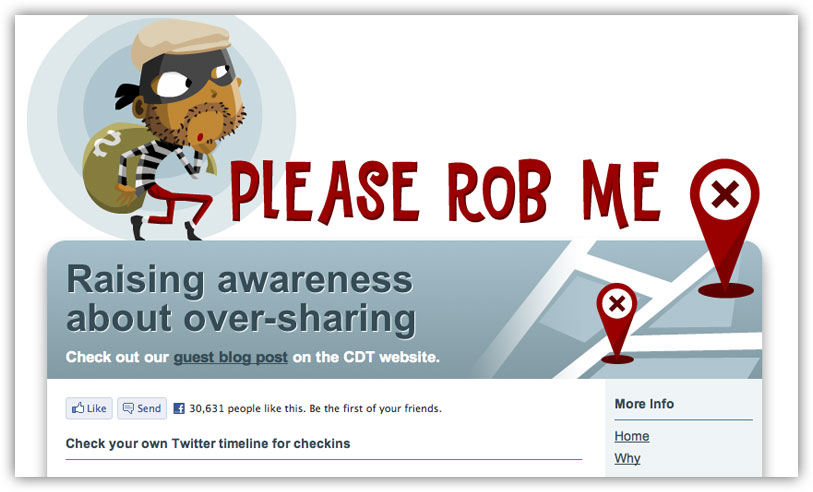 Checking in to sites like Foursquare, Gowalla, and Facebook is all fun and games until somebody loses an eye—or, well, any personal belongings that a thief can snatch while s/he knows you're out of the house. A web app called Please Rob Me demonstrates (with humor) how your check-ins can provide too much information regarding your whereabouts when you share publicly. All you really have to do to solve this problems is share privately. Most check-in sites have this option. Follow these instructions for Foursquare, simply become a private user on Gowalla, and if you're using Facebook you can just tag yourself at a location after the fact so your location isn't disclosed in real-time. That's really all there is to it. Be careful who you share your location with and you've fixed the potential damage.
Stupid Thing #8: You Use an Insecure Password That You Rarely (or Never) Change
 If you read Tech. In Total. with any regularity you know we love a good, strong password. That said, most people seem pretty reluctant to let go of their simple passwords in favor of something more complex. But you can have strong yet memorable passwords or just use a multiword phrase to decrease the chances of anyone ever hacking your password. Or better, yet, you can let a password manager like LastPass pick and remember your complex password for you. But anyone who's using a weak password at this point is likely doing it because they don't want to bother changing every password for every online service they've ever used. While that's understandable, you really just have to get off your butt and take care of it. Using a service like LastPass is a good option because it can save your existing passwords and automatically detect updates when your passwords change. This way you can change them at your leisure, whenever you log into a site with an old password, and make sure everything is still up-to-date and remembered by a password manager. (Consult this infographic for a condensed look at nearly every tip and method we've posted.)
Want to leave your suggestions? Drop them in the comment section below:
The Get More Out of Google Infographic Summarizes Online Research Tricks for Students

Provided by the folks at HackCollege, the infographic reminds student researchers that you can use Google as a calculator and unit converter, how to find papers by a specific author in Google Scholar, and basic operators you can use. Here's the full infographic (click to expand):

- Infographic: Get More Out of Google || HackCollege via How-To Geek
Popular Posts
-
 It's been about three years since Microsoft unveiled a new version of Office, and particularly with Windows 8 just months away from ...
 -
 There's general agreement that Sony stumbled out of the gate with the PlayStation 3. Months of intense hype were followed by a la...
 -
 Latest Windows Phone 8 rumor suggests that current Windows Phone devices will receive the update Microsoft has yet to come forward wi...
 -
Microsoft is holding an invitation-only press event in San Francisco today at which it is expected to debut the next version of its...
-
 Gaming & Gadgets Microsoft kick-started the "next-generation" of gaming on November 22, 2005, when the company release...

