


Showing posts with label Windows Live. Show all posts
Showing posts with label Windows Live. Show all posts
Windows 8.1: Everything You Need to Know

Microsoft continues to reveal details about the update to Windows 8, now known as Windows 8.1 and formerly known as Windows Blue.
Windows 8.1 shown off at the Microsoft Build developer conference in June and the final version will be available as a free downloadable Windows 8 update.
Microsoft also said in early May that there would be a preview version available before full release which we'll get on June 26
The "first look" blog post by Microsoft's Antoine Leblond doesn't talk about a Start button. It does, however, say that the Start "tip" will change to "be the familiar Windows logo".
That's pretty much the same as before - so, sorry people, you won't be getting a proper Start menu. "The new tip appears anytime you move the mouse to the bottom left corner of the screen, and is always visible on the taskbar when on the desktop," says Leblond.
Windows 8.1 will bring greater personalisation


earlier this year: "Not only will Windows 8.1 respond to customer feedback, but it will add new features and functionality that advance the touch experience and mobile computing's potential." The feedback he's talking about is surely the mellowing of the Start screen dream and the reintroduction of a Start button of some sort.
Windows 8.1 security: what's been improved
"We're only a bit more than seven months into a new, bold approach to computing," continues Leblond.
"The response to Windows 8 has been substantial - from new devices to strong app growth to key enhancements to the OS and apps. We've learned from customers in how they are using the product and have received a lot of feedback. We've delivered hundreds of updates to the product and to apps. We're just getting started, and the potential ahead is tremendous.""We've been watching, we've been listening"
We've picked out the top 10 enhancements in Windows 8.1 along with some quotes from Leblond about each one.

1. Lock screen slideshow

"As people started using Windows 8, we found that people were using their Lock screens to show pictures of their families," Leblond says. So in Windows 8.1, you can turn your PC or tablet into a picture frame by making your Lock screen a slide show of your pictures - either locally on the device or photos from Microsoft SkyDrive. "We also added the ability to take pictures with the built-in camera right from the Lock screen without having to log in."
2. More backgrounds

Windows 8.1 offers more colours and backgrounds for the Start screen - including some with motion. You can also choose your desktop background as your Start screen background.
3. Different tile sizes

As in Windows Phone 8, the Windows 8.1 Start screen features a variety of tile sizes including a new large and new small tile. It's also even easier to name groups and rearrange tiles, says Leblond: "We found people were accidentally moving tiles on their Start screen so in Windows 8.1, you press and hold (or right click) to move things around." You can now select multiple apps all at once, resize them, uninstall them, or rearrange them:
"View all apps just by swiping from the bottom to view all apps, and we've added the ability to filter your apps by name, date installed, most used, or by category. You want the Start screen to be about all the things you love.
So when you install a new app from the Windows Store, we no longer put that app on your Start screen. Instead,
you'll find these apps under apps view as mentioned above and marked as 'new' where you can choose to pin the apps you want to your Start screen." Tiles can be even smaller
4. Aggregated search


Instead of having to select an app and then search when you go to the Search charm, Bing now powers an aggregated search system from the web, your files, SkyDrive and elsewhere. Leblond says: "We think this will really change the way you interact with the Web and with Windows making it quicker and easier to get things done. It is the modern version of the command line! Results from local files, apps, and settings are easily accessed in the same convenient view by scrolling to the left."
5. Enhanced apps
New app enhancements are also promised to all the built-in apps. According to Leblond: "The Photos app now has some new editing features that let you quickly edit or adjust photos when you view them in the Photos app or open them from other places like the Mail, SkyDrive, and Camera apps. And our Music app has been completely redesigned to help pick and play music from your collection. We plan to talk more about updates to the built in apps in
Windows 8.1 and some brand new apps we will be introducing in the future. We're also making improvements for using multiple apps at once in Windows 8.1."
6. More snap views


7. An enhanced Windows Store
App updates will now install automatically in the background as they come through the Store. And search is available in the upper right hand corner for finding the apps you want. Leblond elaborates: "The improved Windows Store is designed to show more info than before in Windows 8 with detailed lists of top free apps, new releases, and picks for you on the homepage. The app listing is more descriptive and informative and includes an area for related apps to help with app discovery."
8. Save direct to SkyDrive, plus offline files

In Windows 8.1 your files can be saved directly to SkyDrive. The SkyDrive app will also get a new update so that files are available even when offline - as in the desktop version.
SkyDrive will get offline support
9. You no longer need the desktop Control Panel

The updated PC Settings in Windows 8.1 gives you access to all your settings on your device without having to go to the Control Panel on the desktop. "You can do things like change your display resolution, set power options, see the make and model of my PC, change the product key, let me do Windows Update, and even join a domain – all from PC Settings," says Leblond. You can also manage SkyDrive from PC Settings as well.
10. A new Internet Explorer

Internet Explorer 11 will ship with Windows 8.1. "IE11 will offer even better touch performance, faster page load times and several other new features we think you will enjoy," says Leblond. "For example, you can now adjust the appearance of modern IE11 to always show the address bar and you can have as many open tabs as you like. And you can access your open tabs in sync across your other Windows 8.1 devices."
11. Better with a mouse and keyboard
For devices without touch, Windows 8.1 features a number of improvements for easier navigation using a mouse and keyboard. "PCs today are evolving for a world of mobile computing where people interact with their devices through touch, and we designed Windows 8 for this," explains Leblond. "But we also recognize there are many non-touch devices in use today - especially in the commercial setting."
12. A change to the Start 'tip'
You've already heard about this one, right? Leblond adds that there are also options to change what the corners do, and options to boot into alternate screens: "For example, if you prefer to see the Apps view versus all the tiles, you can choose to have the Start screen go directly to Apps view."
Microsoft says it will be releasing more Windows 8.1 details "in the coming weeks. As you've heard before, Windows 8.1 will be available later this year as a free update."
Microsoft also says that it will also be sharing more about Windows Embedded at Build. Embedded will be"updated in the same timeframe as Windows 8.1. We're aligning the platforms even more to bring Windows to form factors of all types, including not only tablets and PCs, but also the growing category of devices such as ATMs, point of service (POS) terminals, and kiosks."
Love Windows Live Messenger? Here's how you can bring it back

Microsoft recently killed off Windows Live Messenger in favor of Skype, leaving many of us without years' worth of chat logs or the familiarity that MSN brings. Skype, while good, doesn't have the same stability as MSN and adds a lot of unwanted clutter. Microsoft have blocked MSN from working for many users, but some new software from a Microsoft MVP allows you to bring back Messenger in a few simple steps.
Messenger Reviver 2 is a free piece of software that installs, repairs and modifies Windows Live Messenger '08, '09, '11 and '12 to allow them to sign in, despite Microsoft's block. Currently, when you access Messenger you're prompted to "install the newer version in order to continue," but Reviver installs a patch that allows WLM to continue to be used.

To bypass this message, download Messenger Reviver 2. The programme makes changes to your computer, so grant it the relevant levels of access. (A zipped version of the program is also available to bypass security software blocking). The software runs on Windows XP through to Windows 8 and .NET framework version 2.0 or higher, though .NET 3.5 or 4 is recommended.
Once downloaded, a window will pop-up that looks like this:
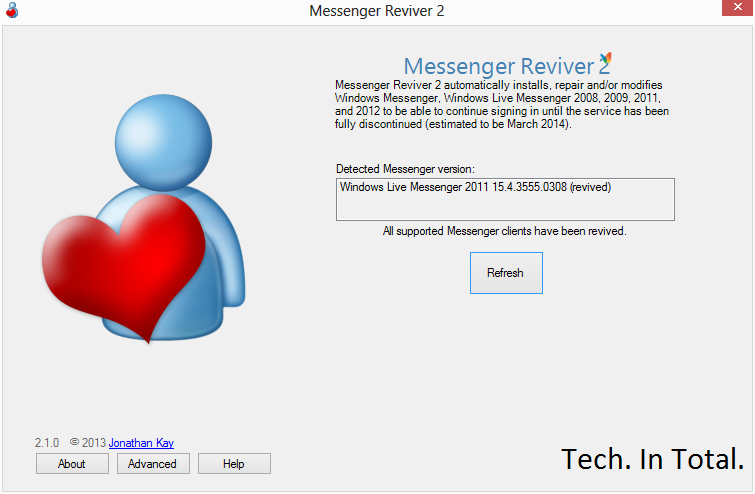
Click "Start" and the program will automatically modify Messenger and restart it. If Windows Live Essentials is not installed, Reviver will offer the option to install the software. If Essentials is installed, but Skype has removed it, Reviver offers the ability to re-install it:

If you no longer have Windows Live Messenger on your system don't worry, we've got you covered.
Download: Windows Live Messenger 2012 (offline installer)
View: More information can be found here
Welcome, The New Microsoft

Microsoft has revealed it is changing its logo for the first time in 25 years.
The new logo now features four coloured squares and a more simplified font without the italics or joined up "O" and "S".
"It's been 25 years since we updated the Microsoft logo. Now is the perfect time for a change. Learn more at http://aka.ms/logo," says Microsoft with the accompanying video.
On the company's official blog Microsoft goes into more detail:
"It’s been 25 years since we’ve updated the Microsoft logo and now is the perfect time for a change. This is an incredibly exciting year for Microsoft as we prepare to release new versions of nearly all of our products. From Windows 8 to Windows Phone 8 to Xbox services to the next version of Office, you will see a common look and feel across these products providing a familiar and seamless experience on PCs, phones, tablets and TVs. This wave of new releases is not only a reimagining of our most popular products, but also represents a new era for Microsoft, so our logo should evolve to visually accentuate this new beginning."

For typographers and corporate brand dudes keen to know more, the logo has two components.

"The logotype and the symbol. For the logotype, we are using the Segoe font which is the same font we use in our products as well as our marketing communications. The symbol is important in a world of digital motion. The symbol’s squares of color are intended to express the company’s diverse portfolio of products."
Oh and video below shows the new logos of the products from Microsoft.
Microsoft’s “Metro” UI Is Now Just “Windows 8”

Microsoft is ditching the "Metro" name for its live tiles UI in Windows 8 and Windows Phone. And it was a bit of a mystery what it was going to be called. Answer's in: Just plain ol' "Windows 8."
It feels a bit like a missed opportunity for Microsoft to brand its whole ecosystem—especially in a way that isn't wholly confusing. "The Windows 8 interface on Xbox" is more complicated than just Metro on Xbox. Or whatever else Microsoft wanted to call it that isn't just "Windows." In fairness, that's what Microsoft had been doing with Metro, before the name fell into litigation, but it's just strange to go completely away from that strategy and fold everything under the Windows 8 umbrella.
Outlook vs. Gmail: A Feature-by-Feature Comparison

[Updated]
Microsoft announced its Outlook webmail service this week, and it's a suprisingly robust new webmail client. But can it hold a torch to the current king of webmail, Gmail? To give you a better idea of how they stack up, here's a feature-by-feature comparison of Outlook vs. Gmail.
Feature-by-feature, the two services are remarkably similar. Here's a quick rundown:

Now for the more detailed breakdown.
Interface

Let's start with the first thing you're going to notice when you log into Outlook for the first time: the interface. Most of us are familiar with how Gmail looks and feels. Outlook's not entirely different, but it is a little simpler.
Outlook's Clean, Email-Centric Interface
Outlook is all about email. That's it. When you pop into Outlook, you're shown your email account and nothing else. You still get ads on the sidebar, but overall, it's a far less cluttered interface than Gmail (and it's way less cluttered than Hotmail) because Outlook isn't seeking to integrate with a bunch of other services. Ads are a little less creepy because they're not based on keywords in your inbox.
Gmail's Google-centric Interface
We all know Gmail's interface pretty well at this point. You get personalized ads on the main inbox page on the top, and a sidebar with ads inside your messages. You also have the chat window on the side and the Google bar on the top. It's not complicated by any means, but the Google bar is certainly a bit of a distraction.
Storage Space and Attachments
Email storage space isn't as big of a deal as it once was, but if you're sending a lot of large files back and forth, a hefty amount of storage is helpful.
Outlook Has Nearly Unlimited Storage and a 100MB Limit on Attachments
You get a "virtually unlimited" amount of storage in Outlook. This means your storage capacity grows with your inbox, and you won't be throttled unless you appear to be a spammer. You can also attach a file of up to 100MB to any email. If you link your email to Skydrive you can attach files up to 300MB.
For incoming attachments, Outlook retains the Hotmail-style Active View. YouTube videos open inside the email, a group of photos becomes a slideshow, and you can open any Office document directly in your browser.
Gmail Comes with 10GB of Storage and a 25MB Limit on Attachments
Gmail's limits on storage and attachment size are a lot smaller than Outlook's. Out of the gates, most Gmail users get 10GB of free storage, and attachments are limited to just 25MB in size.
Like Outlook, Gmail opens up YouTube videos directly inline with the email. Gmail also handles Office documents in a similar way, and opens them in browser with the option to edit in Google Docs. Images in Gmail are handled with a pretty typical list view and don't offer the slick sideshow that Outlook has.
Email Organization

For power-users, the most important part of a good webmail client is automatic email filing and organization. Gmail locked this down a while ago, but Outlook brings some new ideas to the table.
Outlook's Quick View Folders and Sweep Features
Outlook doesn't have the robust filtering and labeling system that Gmail does, but it has a few tricks up its sleeve. One is the Quick View folders. These folders are automatically filled with certain types of emails (flagged, photos, office, shopping, etc). For instance, from the sidebar you can instantly search through the last few messages with photo attachments, or messages about Groupon deals. The Sweep feature from Hotmail also carries over to Outlook. Sweeping works a lot like Gmail's labels where emails from certain people or places automatically get filed away in a folder of your choosing.
Gmail's Filters, Labels, and Priority Messages
Using Gmail's labels is an easy way to keep track which emails are important and where they are. Better still, it's simple to set up an automatic filter that combs your incoming mail and distributes messages directly into those labels. If you're still overwhelmed, the priority inbox is a lifesaver for designating which emails really matter.
Junk Mail Control

Everyone hates spam, and no webmail client is worth using if it doesn't have extensive spam filtering. Of course, it's not just spam, it's also the junk you've signed up for that matters (newsletters, mailing lists, coupons, and whatever else).
Outlook's Spam Control and Clever Batch Filtering
Only time will tell how good Outlook's spam control is, but one of Outlook's coolest features is how it handles newsletter-type messages. Outlook automatically labels these messages and adds an unsubscribe button to them—even if the email doesn't include one its own. It's super handy for filtering out those emails you don't mind getting, but don't want alerts constantly.
Gmail's Spam Control and Filter Settings
Gmail has a pretty great spam filter and chances are you won't have too much trouble with spam. However, it doesn't have the same out-of-the-box batch filtering system for that clutter email you get. Still, it's super easy to set up your own filter for things like newsletters. Just create a new filter with words like, "opt-out, unsubscribe, privacy policy, or manage your account" and all your newsletters and coupons will filter off into their own section.
POP/IMAP Support
If you use a third-party email client on your desktop or mobile device, POP or IMAP support is crucial for keeping everything in order. Support for either also matters when you want to look at email without an active internet connection.
 Outlook Doesn't Support IMAP, but Does Have ActiveSync and POP
Here's one of Outlook's major bummers: it doesn't support IMAP or POP. This means using certain third party email services (like Apple's default desktop Mail app) won't work. You can still follow the guide for using Hotmail with POP and that should work with Outlook. Instead, Outlook uses ActiveSync. Subsequently, you can only use email apps that support ActiveSync.
Gmail Has Full Support for Both IMAP and POP
Gmail supports both IMAP and POP and you can switch your settings on the fly very simply. This means you can synchronize between multiple email clients very easily. It also means you can access your archived email even when you're offline.
Search Capabilities

If you receive hundreds of emails a day, then a solid search capability is key with any webmail client. You don't want to spend more than a few minutes hunting down a lost email.
Outlook Has Simple, but Effective Search
Outlook's search capability is pretty straight-forward. You can search by a simple keyword, or pop into the advanced search and narrow it down by email address, subject, folders, and dates. It's nothing too complex, but it works well enough.
Gmail's Comprehensive Advanced Search Strings
Gmail's search strings are pretty advanced. The nice part about Gmail's search is that you don't have to worry about a bunch of input boxes. Instead, you can just type commands like, label, list, or filename, directly into the search box. It's fast and effective for quickly searching through email.
Social Integration
Email is already inherently social, but if you're looking to connect your various social accounts into your email, it's increasingly easy to do.
Outlook's Social Integration with Facebook, Twitter, and LinkedIn & Skype (Coming Soon)
Outlook directly integrates with Facebook, Twitter, and LinkedIn. When you log in with any of those services, you'll see status updates, link mailbox accounts, and more. From the sidebar you can retweet people on Twitter, comment on Facebook status updates, and more. If you don't like the feature, it's easy enough not to enable. Check out the Video Below:
Gmail's Integrates with Google Plus Since Gmail is owned by Google, its social integration starts and stops with Google Plus. The two are tied together in a lot ways, including contact listings, email filtering, and more. Provided your friends are using Google Plus, you can even instantly create email groups to send mass messages to. Which One's Best for You? Outlook is the newcomer, but it's a no-brainer for anyone currently using Hotmail. It's also a good go-to for anyone who wants a webmail client that only does email. Its simplicity is its greatest strength. That said, Google's integration with all of Google's services is nice, and it's advanced features and customization options are more appealing to the power user.
Windows 8 Released To Manufacturing
Right on schedule, Windows 8 has been Released To Manufacturing. What this means is that Microsoft has completed the product development and the testing of Windows 8 operating system, and has started handing over its final code to its OEM partners, so that can start preparing their devices, which they can introduce at its General Availability on 26th October 2012.
Windows 8 has RTM’d
While we have reached our RTM milestone, no software project is ever really “done.” We will continue to monitor and act on your real world experiences with Windows 8—we’ve used the preview process to test out our servicing and we have every intent of doing a great job on this next important phase of the product. Hardware partners will continue to provide new devices and improve support for existing devices. PC makers no doubt have quite a bit in store for all of us as they begin to show off PCs specifically designed for Windows 8, said Steven Sinofsky.Developers and IT professionals will be able to download the final version of Windows 8 via their MSDN or TechNet subscriptions.
Customers with existing Microsoft Software Assurance for Windows, Microsoft Partner Network members, Microsoft Action Pack Providers and Volume License customers without Software Assurance will have access to Windows 8 on dates between August 16th and September 1st.
The Windows Blog has confirmed that users will be able to get Windows 8 starting on October 26th either by upgrading for $39.99 or when they purchase a new Windows 8 device, either a new PC or a new device.
If you buy an eligible Windows 7 PC today, you will be able to purchase an upgrade to Windows 8 Pro for $14.99 (U.S.) through the Windows Upgrade Offer,
In a blog post this morning, Windows chief Steven Sinofsky cites unprecedented levels of testing for Windows 8.
He writes, “The previews of Windows 8 (Developer, Consumer, Release) have been the most widely and deeply used test releases of any product we have ever done. Over 16 million PCs actively participated in these programs, including approximately 7 million on the Release Preview that started 8 weeks ago. The depth and breadth of testing validate the readiness of Windows 8 for the market.”
Via Microsoft, here’s a timeline of next steps:
- August 15th: Developers will be able to download the final version of Windows 8 via your MSDN subscriptions.
- August 15th: IT professionals testing Windows 8 in organizations will be able to access the final version of Windows 8 through your TechNet subscriptions.
- August 16th: Customers with existing Microsoft Software Assurance for Windows will be able to download Windows 8 Enterprise edition through the Volume License Service Center (VLSC), allowing you to test, pilot and begin adopting Windows 8 Enterprise within your organization.
- August 16th: Microsoft Partner Network members will have access to Windows 8.
- August 20th: Microsoft Action Pack Providers (MAPS) receive access to Windows 8.
- September 1st: Volume License customers without Software Assurance will be able to purchase Windows 8 through Microsoft Volume License Resellers.
- October 26: Windows 8 will be available to consumers either by upgrading or on a new PC. Eligible Windows 7 PCs purchased now qualify for an upgrade to Windows 8 Pro for $14.99 (U.S.) through the Windows Upgrade Offer.
Microsoft promises cheap Windows 8 upgrade for Windows 7, Vista, XP users

Microsoft is ensuring its upcoming Windows 8 operating system is made available to the maximum number of existing Windows users. And the Redmond-based software giant is leaving no stone unturned to give Windows 8 enthusiasts a taste of the OS at an inexpensive price.
Just last month, Microsoft revealed a Windows 8 upgrade offer for just Rs. 699, and it generated quite a buzz among Windows enthusiasts. According to that specific announcement, Windows 7 users who buy a PC (desktop or laptop) between June 2012 and January 2013 were entitled for a low-cost upgrade to Windows 8 Pro.
Microsoft is topping that announcement with a limited-time offer that allows not only Windows 7 users, but also those stuck on Windows XP and Windows Vista to upgrade to Windows 8 Pro for just US $39.99. That’s approximately Rs. 2,200, presuming the existing Rupee-vs-Dollar rate doesn’t change. Not a bad price for a brand new Windows 8 copy, if you ask me.
In a blog post, Microsoft gave additional details of the limited-time Windows 8 upgrade offer. While the Rs. 699 Windows 8 upgrade offer is only for relatively newer Windows 7 PCs, the limited-time $40 upgrade to Windows 8 ropes in almost anyone using a genuine Windows 7, Vista and XP machine.
If you are more comfortable buying a DVD from a retail store, you can buy a upgrade to Windows 8 Pro disc for US $69.99 during this promotion, according to Microsoft’s blog post.
To upgrade to Windows 8 through this offer, interested users will have to visit Windows.com and purchase a copy of Microsoft’s upcoming OS in the coming months. The Windows 8 Upgrade Assistant promises to keep things simple by walking you through a step-by-step process from purchase to download and finally to installation.
This offer will be available in 131 markets, according to Microsoft. It’s unclear whether India’s part of the program, all attempts to reach a Microsoft India spokesperson were futile. We’ll update this article as soon as we hear more.
Windows 8 - Release Preview Available Now
Microsoft Corp appears to be on track to release its new Windows 8 operating system in time for the crucial U.S. holiday shopping season after making a "release preview" of the new code available for download on Thursday. Windows 8 is the latest version of the flagship product, which still provides almost half of the world's largest software company's profit. It is the first version that will run on tablet computers as well as PCs, providing Microsoft's first real challenge to Apple Inc's iPad.
"The progress Microsoft is making leads me to believe that Windows 8 will be available in time for the holiday season this year," said David Johnson, an analyst at tech research firm Forrester. "I've been using the consumer preview for several weeks, and while it's obvious more finishing work is needed, it has been stable and reliable."
Microsoft's release preview is similar to what the software company used to call a "release candidate," meaning the product is all but finished. The next stage is "release to manufacturing," when Microsoft hands the code to PC makers such as HP, Dell and Lenovo to install on new PCs, laptops and tablets.
Based on the timeline for Windows 7 three years ago, Microsoft is on track for full release by October or November, when machines running it will be available in stores. The company has never put a firm date on the release of Windows 8, but says it aims to have a new system every three years. Windows 7 debuted in October 2009.
In the meantime, in order to prevent a drop-off in PC sales, Microsoft said on Thursday that customers who buy Windows 7 PCs between now and January 31 can get an upgrade to Windows 8 Pro for $14.99.
Till then the Windows 8 - Release Preview can be downloaded from HERE
Windows 8 Consumers Preview Released and Up for Downloads
And The WINDOWS 8 CONSUMER'S PREVIEW IS OUT. Here's the Post from the Windows 8 team about the new Stunning Windows 8.
Today is a big day for the Windows team. At Mobile World Congress in Barcelona, Spain a few moments ago, we unveiled the Windows 8 Consumer Preview to our partners and press. Based on a broad range of feedback, we have made over 100,000 code changes and the Consumer Preview represents a refined product ready for broad and daily usage by those of you willing to test a pre-release OS. You can download the Consumer Preview starting now at http://preview.windows.com. If you tried the Windows 8 Developer Preview, then you are going to be delighted to see a broad range of product changes and improvements based on a feedback from many sources.
Windows 8 reimagines Windows, from the chipset to the experience. With the Developer Preview we focused on presenting the new APIs and amazing new tools for developers. Today’s Consumer Preview is focused on a broader audience, and along with improvements to the WinRT APIs based on developer feedback, we are introducing the full user experience, the Windows Store for apps, and early previews of some first- and third-party apps.
With so much to dive into, let’s talk about what is different in the Consumer Preview at a high level:
Broad range of product changes and improvements: Since the Developer Preview in September, designed to preview the programming platform, Windows 8 has progressed across every dimension. From completing the user experience for touch, keyboard, and mouse, to refining the development platform, to improving performance, quality, and reliability across all subsystems as well as new features, the Consumer Preview represents a complete view of the capabilities of Windows 8.
Windows Store with an “App Preview” of new apps: The Windows 8 Consumer Preview marks the opening of the Windows Store for testing. You’ll see a variety of new Metro style apps from both third-party developers and Microsoft. During the Consumer Preview, these apps are available to try and experience at no cost to users. Please note, these apps and the set of preinstalled apps are at an early stage of development and are available as an early App Preview, and will be updated via the Windows Store. In addition, the Store will offer personalized recommendations, and Windows 8 gives users the ability to take their apps and settings with them across multiple PCs, making it easy to discover and try new apps while offering developers the greatest opportunity of any platform
Connecting to the cloud across Windows PCs and Windows Phones: You’ll experience seamless integration with the content across your web services. Optionally signing in with a Microsoft account provides access to features including the ability to roam all settings, use cloud storage, communicate with email, calendar, and contacts, and connect to a broad range of services. Your connection to the cloud works across your Windows PCs and your Windows Phones. You’ll also experience early previews of the Metro style apps for Mail, Calendar, People, Messaging, Photos, and SkyDrive.
Internet Explorer 10 Platform Preview 5: With IE10, we reimagined the browser to create a new experience designed specifically for Windows 8 devices. It provides an edge to edge interface that is all about less browser, and more web. Fast and fluid, IE is hardware-accelerated to enable web performance. The same rendering engine and high-performance script engine is available on the Windows desktop as well.
We’ve detailed many features in this blog across all the subsystems of Windows 8. From the kernel, networking, file system, graphics, and the user interface across all of those. There’s no easy way to enumerate the depth and breadth of Windows 8 in a post. The best thing to do is experience it yourself. We encourage everyone to check out our demo video, and all the videos and information on http://preview.windows.com. From there you can also download the Consumer Preview for x86/64. For developers, there is also a beta of Visual Studio 11.
We’ll publish a quick look at system requirements for this release, but the short version is that your Windows 7 logo PC is the perfect place to start as the system requirements have not changed. You can upgrade from the Developer Preview or from Windows 7, or install cleanly (we strongly recommend a hardware installation and not a VM install if you are looking to experience the release as the vast majority will experience it, and please keep in mind the minimum screen resolution required is 1024x768). We will be updating the release with various quality updates and drivers over the coming weeks/months just to exercise our overall update and telemetry mechanisms. Please keep in mind that this is a test release of a product still under development.
We’ve got a lot more blogging to do. So stay tuned for details of the changes we made and the features we haven’t had a chance to talk about yet. This blog continues to be a big part of the development process. Now that we have this shared experience, we expect folks commenting on posts to be running the Consumer Preview so we’re all sharing the same context. We know there will be a lot of feedback—that comes from reimagining a product used by a billion people!
Happy downloading and testing!
--Steven on behalf of the Windows 8 team

Microsoft officials acknowledged in Building Windows 8 blog posts back in October 2011 that the team knew that the early Developer Preview bits were not optimally navigable using a mouse and keyboard — despite the fact that Microsoft is touting Windows 8 as a “no compromises” experience that will work equally well on touch tablets and PCs and regular laptops and desktops. Microsoft officials said last October that there would likely be improvements coming in the future around mouse scrolling, app-switching and how app-search results are displayed.
Testers using the Developer Preview haven’t gotten a good perspective on how Metro-style apps will work on Windows 8 because only a few sample apps were available in conjunction with the preview bits. Microsoft is expected to release more Metro-style apps with the Windows 8 CP — and to open its promised Windows 8 app store at the same time.
Microsoft details its Windows Live ID integration in Windows 8

Microsoft detailed its Windows Live ID integration in Windows 8
The software giant is planning to offer optional Windows Live sign-in for user accounts as part of Windows 8. The developer preview build of Windows 8 offers some parts of the integration but Microsoft plans to include the following in Windows 8:
Associate the most commonly used Windows settings with your user account. Saved settings are available on each Windows 8 PC you sign in to
Windows 8 Metro style app settings and last-used state persist across all Windows 8 PCs linked PCs
Website and application login credentials are automatically synced across Windows 8 linked PCs
Automatically sign in to apps and services that use Windows Live ID for authentication
Windows 8 users can choose which settings they would live to sync across their PCs. Settings such as the lock screen picture you’ve chosen or Windows desktop wallpaper, account user tile, browser favourites and explorer settings will sync across all Windows Live ID linked PCs. “They are kept in sync and come down to each machine you use as they are changed or updated,” explained Katie Frigon of Microsoft’s you-centered experience team in a blog post on Monday.
“We’ve recommended a default behavior that assumes you want to roam settings that are used most often to personalize and customize the way you use your PC,” says Frigon. “You maintain control of your data when work and personal start to mix.” Microsoft asks Windows 8 users which type of data they want to sync if they choose to link a Windows Live ID to a Windows Domain account. “You can decide if things like your web history, favorites, or credentials should sync to your work machine, or if you’d prefer to keep those or anything else that is synced only on your personal machines,” explains Frigon.
IT administrators can also control what a user decides to sync to a work PC through group policy. “We have provided control to IT administrators to decide if a worker can link their domain account to an ID, and if the admin allows that link, what types of data the worker is allowed to sync,” says Frigon. Microsoft also separates the Windows domain credentials so they never get synced to the cloud.
Microsoft is safe guarding the data and privacy of Windows 8 users by requiring a strong password and a secondary proof of identity. The secondary proof will enable users to create a trust between PCs that they own and Windows Live. “Collecting the secondary proof of your identity also helps make account recovery easier and more secure,” explains Frigon. Microsoft has taken extra steps to ensure data is protected too. The company will not roam data over WWAN by default and all user data is encrypted on the client before it’s sent to Microsoft’s cloud servers. All data is then transmitted using SSL/TLS. “The most sensitive information, like your credential information, is encrypted once based on your password and then encrypted again as it is sent across the Internet,” explains Frigon. Windows 8 users will be able to establish a secure PC by providing the extra proof of identity. The secondary proof can be setup using a mobile phone via SMS or a secondary email address.
Microsoft believes the new settings will make the Windows 8 experience more personal and easier to setup across multiple devices. “We look forward to hearing about how you are enjoying the feature and to receiving your feedback,” says Frigon.
Microsoft reveals its own password store for Windows 8
Microsoft revealed that it’s planning a password store for Windows 8, negating the requirement for applications such as 1Password and LastPass.
Microsoft has tried a number of methods over the years to improve password management in Windows. The latest operating system, due to make its debut next year, will feature two password stores that keep web credentials and Windows credentials safe. Windows 8 will automatically store and retrieve passwords for websites and applications. Application and website developers can build support for storing passwords or disable the functionality. “Anyone building a Metro style app can use a direct API to securely store and retrieve credentials for that app,” explained Microsoft’s Dustin Ingalls in a blog post detailing the new features.
Microsoft is also planning to link the saved passwords into its cloud sync support. Windows 8 will feature the ability to link Windows Live IDs and Windows accounts together. Saved credentials will automatically sync between trusted Windows 8 PCs that belong to a particular Windows Live ID. “When you store credentials in conjunction with signing in to Windows with your Windows Live ID, Windows enables you to set your password for each account to something that is both complex and unique; since Windows 8 will automatically submit the credential on your behalf, you’ll never need to remember it yourself,” explains Ingalis. Windows 8 users will be able to view their passwords and usernames to websites from the credential manager. Windows 8′s credential manager builds on Apple’s Keychain idea but pushes the implementation further. The cloud sync support for passwords will make it incredibly easy for users of multiple machines to keep their devices fully synced.

The final part of Microsoft’s password improvements for Windows 8 sees the company introduce the ability for the TPM computer chip to act as a virtual smart card. This solution will appeal to business and enterprise customers who regularly have to access banking and commerce sites using a specially assigned smart card. The virtual smart card feature removes the requirement for a physical smart card and takes advantage of the TPM chip inside. “The virtual smart card feature can be used in place of existing smart cards with any application or solution that is smart card compatible,” explains Ingalis. “No server or application-side changes are required.”
Windows 8 now includes touch gesture to close Metro style apps

News Microsoft’s latest Windows 8 pre-beta builds include a touch gesture to close Metro applications.
The gesture allows touch based Windows 8 systems to quickly close off running apps. Microsoft’s Windows 8 developer preview does not include such a feature and relies on the task manager to close applications. The new touch gesture was demonstrated in a video by winunleaked on Saturday (see below). The feature appears to work for Metro “immersive” applications only and looks to be the first of many gestures that Microsoft is planning for Windows 8. The software maker is also building in a zoom feature for the Start Screen to allow users to organize their applications into groups and move items around the screen easily.
Images of Microsoft’s improved Windows 8 Charms Bar were released on Saturday too. The images show off a translucent Charms Bar. Microsoft has enabled support for automatic updates to Internet Explorer 10. Windows 8 users can enable the feature from the about dialog box in Microsoft’s latest browser. Microsoft is currently preparing a beta copy of Windows 8, to be made available in January. Little is known about the feature set of Microsoft’s Windows 8 beta. Recently leaked screenshots indicate that Microsoft will allow users to change the Start Screen color and the Start Screen background image in beta copies of Windows 8. Microsoft has previously detailed some other minor improvements to the Windows 8 beta. Users will be able to create, name and rearrange Start Screen groups as well as navigate with the Windows 8 Apps screen in a better way. Microsoft is planning to group applications to make it easier for users to identify them in Windows 8 beta. Windows Media Center will also return to Windows 8 beta alongside the typical Windows games, DVD creator and .NET 3.5.
Popular Posts
-
 It's been about three years since Microsoft unveiled a new version of Office, and particularly with Windows 8 just months away from ...
 -
 There's general agreement that Sony stumbled out of the gate with the PlayStation 3. Months of intense hype were followed by a la...
 -
 Latest Windows Phone 8 rumor suggests that current Windows Phone devices will receive the update Microsoft has yet to come forward wi...
 -
Microsoft is holding an invitation-only press event in San Francisco today at which it is expected to debut the next version of its...
-
 Gaming & Gadgets Microsoft kick-started the "next-generation" of gaming on November 22, 2005, when the company release...

